How do you block apps during work hours on iPhone?
Choose the apps that pull you away, keep the ones your job needs, and schedule a protected window for your working hours. An app blocker like FocusPass does this with a Work Focus Zone: feeds get a shield from, say, 9 AM to 5 PM, while Essentials like Slack and Mail stay open.
The sorting game above is the honest first step, and the one most guides skip. Blocking "social media" is easy. Deciding that LinkedIn is work on Tuesdays and a feed on Thursdays is the real job.
Why a Work Focus mode alone doesn't block apps
Apple's Focus feature silences notifications and can show only the Home Screen pages you pick. That helps. But the apps are still one swipe away in Search and the App Library, and nothing stands between your thumb and the feed. A Focus filters the knock on the door. A shield puts a door there.
Why bother? In a 2008 lab study at the CHI conference, Gloria Mark, Daniela Gudith and Ulrich Klocke found that 48 people finished interrupted tasks just as well and even faster, but reported more stress, frustration, time pressure and effort. You can absorb interruptions. It just costs you.
Interruptions don't always cost you quality. They cost you calm.
The 5-workday plan to block apps at work
One change per workday, so nothing breaks on a busy morning. Set your hours and the plan updates.
- Mon1
Pick, don't block
Install FocusPass and use Apple's Screen Time picker to choose the apps you shielded in the game. Add Slack, Mail and Calendar as Essentials. Don't schedule anything yet: just notice the shield when you open a feed.
- Tue2
Turn on one Work Zone
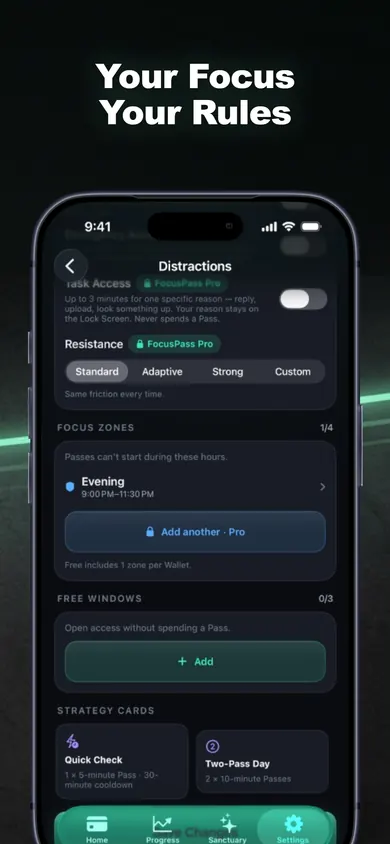
Create a Work Focus Zone from 9:00 AM to 5:00 PM, weekdays. The free plan includes one Focus Zone, so this is the one.
- Wed3
Use Passes on purpose
When work genuinely needs a shielded app, take a 5 or 10-minute Pass with a reason like Post or Research. It relocks on its own. Every Go back counts as one Focus Save.
- Thu4
Book one deep block
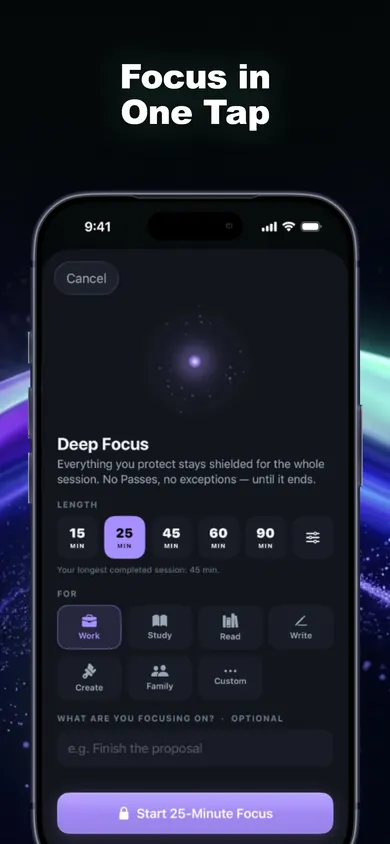
Start a 45 or 60-minute Deep Focus session at 10:30 AM from Home, Siri, Apple Watch or a widget. The timer sits in the Dynamic Island. Free includes one a day.
- Fri5
Read your week
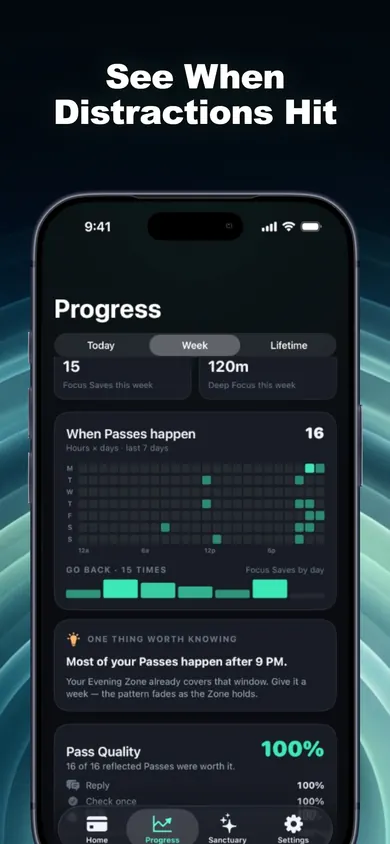
Open the Pass heatmap. If most Passes cluster at 2:00 PM or near the end of the day, that's your weak hour. Adjust Monday's Zone, not your willpower.
Day 4 places the deep block 90 minutes after you start, once mail is triaged. Move it if your best hour is earlier.
What it looks like on your phone
Honest limits
- You can't shield half an app. If Slack is both your job and your distraction, keep it as an Essential and handle its notifications in Slack itself.
- Free has one Zone and one Deep Focus a day. That covers a work week. More Zones and unlimited Deep Focus are in Pro.
- Managed phones come first. If your employer or a parent manages Screen Time, their settings win.
- The off switch always works. Turn Off All Protection is never locked. We built it that way on purpose: a work tool shouldn't trap you during an emergency. Focus Rescue also gives a short, once-per-session exit from Deep Focus.
Questions about blocking apps at work
Does an iPhone Focus mode block apps during work?
Not on its own. A Work Focus silences notifications and can show only the Home Screen pages you choose, but you can still open any app from Search or the App Library. To put a shield in front of an app, you need Screen Time limits or an app blocker.
Can I block Instagram at work but keep Slack and email?
Yes. In FocusPass you choose the apps to protect with Apple's Screen Time picker and mark apps you must always reach as Essentials, so Slack, Mail and Calendar stay open while the feeds are shielded.
What if I need a blocked app for work, like posting on LinkedIn?
Use a Pass. Pick 5, 10 or 15 minutes and a reason like Post or Research. The app relocks on its own when the Pass ends, even if FocusPass is closed.
Is FocusPass free for work hours?
The free plan includes native shields, timed Passes, automatic relocking, one Wallet, one Focus Zone and one Deep Focus session a day. One Focus Zone is enough for work hours. FocusPass Pro adds more Zones and unlimited Deep Focus.
Will it work on a phone my employer manages?
If an organization manages Screen Time on the phone, its settings come first. FocusPass works alongside them but cannot override them.
Who should pick something else
- If your distraction is the laptop, not the phone, a desktop site blocker will do more for you.
- If you only want silence, Apple's Work Focus is free and already on your phone.
- If you're on call, a shield may be the wrong tool during on-call hours. Leave those hours out of your Zone.
Silence the notifications with Focus. Shield the feeds with a Zone. Keep the job apps open.
How FocusPass handles a workday, in 3 steps
- Protect. Feeds get a native shield that reads PROTECTED during your Work Zone.
- Choose. At the shield, Go back, or Use a Pass for a set number of minutes and a reason.
- Return. The Pass ends, the app relocks, and you're back in the work without deciding again.
Set the Zone tonight.Work protected tomorrow.
Try it tonight: it takes about five minutes to pick apps and set your hours. No account, no ads.
More from Focus and Screen Time
- App blocker for kids vs adults: who holds the keyApp blocker for kids vs adults: who holds the key changes everything. Three taps walk a decision chart to Screen Time, a parental app or a self-blocker.
- Block apps while studying: a finals plannerPick your exam date, study hours and hardest time of day. Get a finals-week plan of blocked study sessions for your iPhone, with honest limits.
- How to block TikTok at nightHow to block TikTok at night on iPhone: three ways compared, a 20-second demo of a nightly shield, and the setup that relocks TikTok after a short Pass.
- One sec vs Opal, compared honestlyOne sec vs Opal, compared from their App Store listings on 3 November 2026: how each stops you, free plans, US prices. Plus a 3-tap quiz to pick.