The limit pops up. You were mid-scroll, so you tap for fifteen more minutes. Then again after dinner. Then "ignore for today" at 11 PM, because by then, what is the point? Nothing about that feels like a decision. It feels like dismissing a notification. And by morning the counter has reset, as if none of it happened.
That last part is the real problem. Apple's Screen Time limit is a good alarm, but the button that silences it costs nothing, so your thumb learns to press it. You are not short on willpower. You are using a limit with no price attached.
A limit you can dismiss for free gets dismissed.
You are in good company. Pew Research Center's September 2026 survey found 53% of US adults say they spend too much time on their smartphone, rising to 70% of adults under 30. Of the people who tried to cut back in the past year, 23% said they were not too or not at all successful.
How much time does Ignore Limit really cost?
At three taps a day of fifteen minutes each, Ignore Limit adds over five hours a week that your limit never counts. Move the sliders to your own numbers. The left box is what happens with a free override; the right box is the same habit if every extra minute came out of tomorrow.
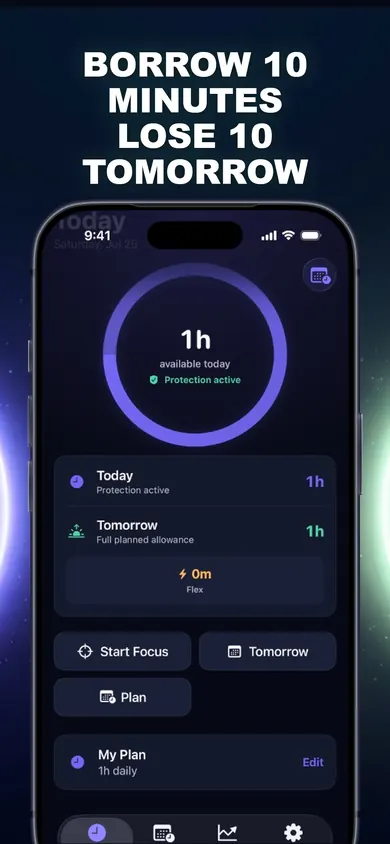
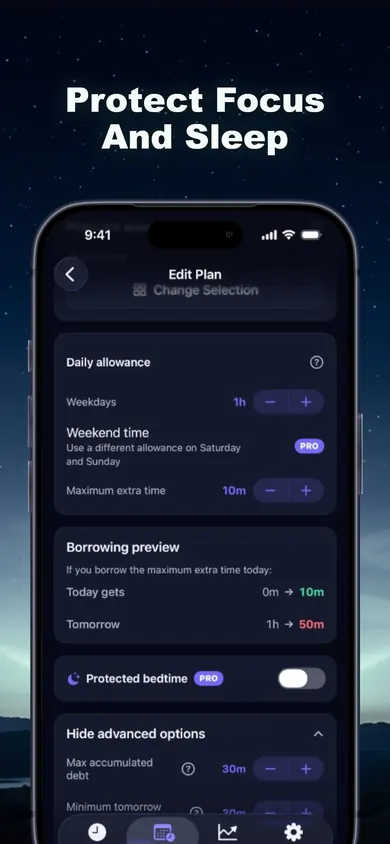
The right box is the idea behind Time Debt: borrow ten extra minutes today, and tomorrow's allowance starts ten minutes shorter. You see today, tomorrow's normal allowance and tomorrow's adjusted allowance side by side before you confirm. Repayment happens once, never twice, with no interest, and tomorrow never drops below the minimum you set.
More time is fine. Free time from nowhere is the trap.
Ways to stop ignoring Screen Time limits, compared
There are four honest options. Two are built into your iPhone and cost nothing. We have marked ours, and we would use the first row ourselves for a child's phone.
| Option | What happens at the limit | Good for | Catch |
|---|---|---|---|
| Screen Time passcode set by someone else | You need their code for more time | Kids, or a partner holding you to it | Needs another person |
| Apple's block-at-end-of-limit setting | Fewer ways to wave it away | A hard stop on your own phone | On your own phone you still know the passcode |
| Delete the app | No app to open | One app that has to go | Browsers fill the gap |
| Time Debt (ours) | A calm shield; stop, or borrow from tomorrow | Adults who sometimes really need more time | You can always use emergency access, by design |
The block setting comes from Apple's own Screen Time options; one parent on Apple's support community reported that choosing to block when the limit ends removed the ignore option for them. Apple's guide to setting schedules and limits in Screen Time covers the setup.
Pick the option that matches who is holding you to the limit: someone else, a hard wall, or tomorrow you.
What Time Debt does not do
We made one decision on purpose that some people will dislike: emergency access always works. You can remove every Time Debt shield until tomorrow at any time, at no cost. If an emergency override sounds like a loophole you will abuse, a passcode held by someone else is the stronger tool.
- It does not change Screen Time limits set in iOS Settings or by a Family Sharing organizer.
- It does not monitor anyone remotely. The family plan works on a shared or handed-over iPhone, with parent-only settings behind Face ID, Touch ID or passcode.
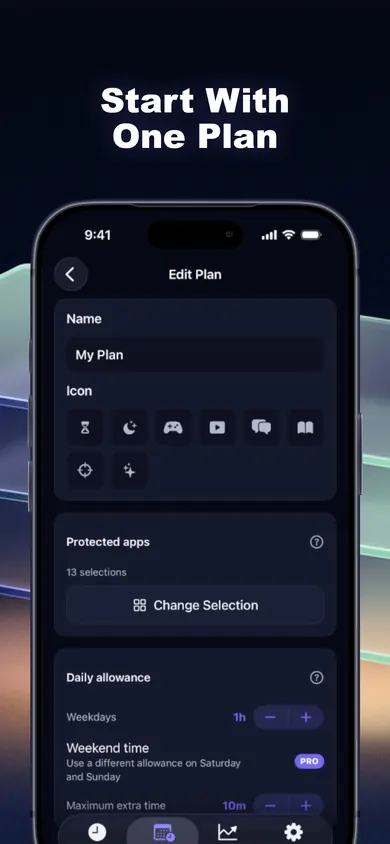
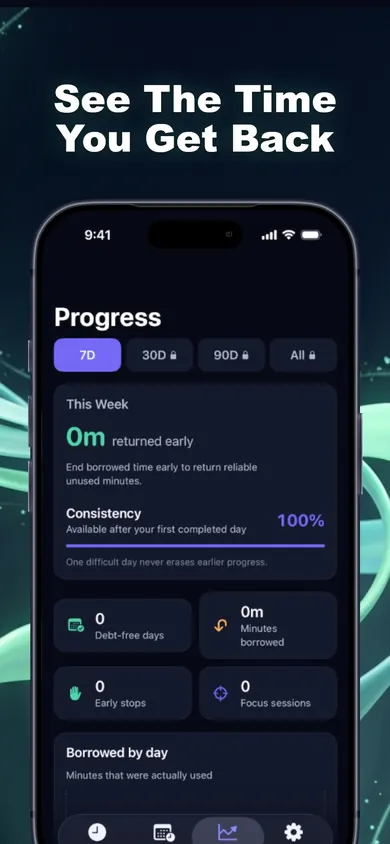
- The free core plan has one plan, real blocking, borrowing, automatic repayment and 7-day history. Weekend limits, multi-day repayment and longer history are in Time Debt Pro.
- It is a voluntary commitment tool, not medical or psychological treatment.
A shield you can lift in an emergency is a promise to yourself, not a lock.
Who should pick something else
- Parents setting limits for a child's own phone: use Apple's Screen Time with Family Sharing and your own passcode.
- People who want zero access to one app: deleting it is simpler.
- Anyone whose phone use feels out of control or is hurting sleep, work or mood: talk to your clinician. This is general information, not medical advice.
What it looks like on your iPhone